Thursday, 19 February 2015

Create a button in sharepoint 2010 ribbon

Create Custom Button in Ribbon SharePoint 2010
To add a new button, you start by creating an empty module.
To create a Ribbon using Custom Actions
1.        Create a folder CustomActions.
2.       Right click on “CustomActions” ,point to Add  and then Select Add New Item


3.       Select “Empty Element as shown in the above snap and Provide name CustomRibbonButton

4.      Add the below code block.
<Elements xmlns="http://schemas.microsoft.com/sharepoint/">
  <CustomAction
    Id="Ribbon.Library.Actions.AddAButton"
    Location="CommandUI.Ribbon"
    RegistrationId="101"
    RegistrationType="List"
    Title="Add a Ribbon Button">
    <CommandUIExtension>
      <CommandUIDefinitions>
        <CommandUIDefinition
          Location="Ribbon.Library.Share.Controls._children">
          <Button Id="Ribbon.Library.Share.NewRibbonButton"
            Command="NewRibbonButtonCommand"
            Image16by16="/_layouts/$Resources:core,Language;/images/formatmap16x16.png" Image16by16Top="-144" Image16by16Left="-64"
                                         Image32by32="/_layouts/$Resources:core,Language;/images/formatmap32x32.png" Image32by32Top="-255" Image32by32Left="0"
            LabelText="Hello World"
            TemplateAlias="o2" />
        </CommandUIDefinition>
      </CommandUIDefinitions>
      <CommandUIHandlers>
        <CommandUIHandler
          Command="NewRibbonButtonCommand"
          CommandAction="javascript:alert('Hello, world');" />
      </CommandUIHandlers>
    </CommandUIExtension>
  </CustomAction>
</Elements>

5.       Deploy the solution and see your custom button under “View all site content à Document Library à In ribbon, Library Tools à Documents à Share & Track section.

6.      Click on the “custom button”, it will give you an alert as you specified in the CommanAction.
7.       If you want to write your own script, add a script file block and change customAction accordingly.

<Elements xmlns="http://schemas.microsoft.com/sharepoint/">
  <CustomAction Id="Ribbon.Library.Actions.AddAButton.Scripts"
              Location="ScriptLink"
              ScriptSrc="TestProjectName/js/Custom.js" />
  <CustomAction
    Id="Ribbon.Library.Actions.AddAButton"
    Location="CommandUI.Ribbon"
    RegistrationId="101"
    RegistrationType="List"
    Title="Add a Ribbon Button">
    <CommandUIExtension>
      <CommandUIDefinitions>
        <CommandUIDefinition
          Location="Ribbon.Library.Share.Controls._children">
          <Button Id="Ribbon.Library.Share.NewRibbonButton"
            Command="NewRibbonButtonCommand"
            Image16by16="/_layouts/$Resources:core,Language;/images/formatmap16x16.png" Image16by16Top="-144" Image16by16Left="-64"
                                         Image32by32="/_layouts/$Resources:core,Language;/images/formatmap32x32.png" Image32by32Top="-255" Image32by32Left="0"
            LabelText="Hello World"
            TemplateAlias="o2" />
        </CommandUIDefinition>
      </CommandUIDefinitions>
      <CommandUIHandlers>
        <CommandUIHandler
          Command="NewRibbonButtonCommand"
          CommandAction="javascript:handleClick()"
          EnabledScript="javascript:handleSelection()" />
      </CommandUIHandlers>
    </CommandUIExtension>
  </CustomAction>
</Elements>
8.      Write the below code in your “Custom.js”

function handleSelection () {

    if (SP.ListOperation.Selection.getSelectedItems().length == 1) {
        return true;
    }
    else {
        return false;
    }
}

function handleClick () {

//Write you code here

}


That’s all... Happy coding J


A list, survey, discussion board, or document library with the specified title already exists in this Web site. Please choose another title.

This a pathetic error if you are deploying solution through VS. Developer doesn't have an idea which list is creating this conflict.

We can fix this with 2 simple steps.

1. Cross check List instances in visual studio are exists in "Site all content"
2. If anything missed, then that will be your target.
3. Open your site in sharepoint designer, go to "All Files" and check whether all your lists are created properly.
4. If any list/library created like only folder, delete that folder and try to deploy.

Tuesday, 23 September 2014

Deployment conflicts were detected.

When developing solutions for SharePoint 2010 Visual Studio automatically resolves conflicts when redeploying a solution. By default, user will be prompted with the below message.


  • If you select Resolve Automatically, your list and all of its data will be removed before a new instance of the list is provisioned. 
  • To prevent this, you can set the Deployment Conflict Resolution property of the list instance in the Solution Explorer to None
  • Simply right-click on the list instance project item in VS and select Properties. Then select None from the drop-down list of values:


Thursday, 11 September 2014

RSS Viewer Webpart in SharePoint 2010

There can be two types of RSS Feed links.
·         Internal
·         External

Internal RSS Feed Web part

Any RSS Feed link (xml) which is hosted inside a company intranet is categorized as a RSS Feed internal link. To make use of these feeds, we have three options.
·         Change default authentication type NTLM to Kerberos
·         Enable anonymous access on List/Library.
·         Custom RSS Viewer web part

If Kerberos authentication in configured (enabled) on your SharePoint server then you can use an out of the box RSSViewer Web Part to render an RSS feed coming from the internal RSS feed link.To enable Kerberos authentication, follow this link:


If the security configuration is NTLM and you try to configure the RSS view webpart with an internal RSS feed link, it will throw an error like this:

                “The RSS Web Part does not support authenticated feeds.”

In this case, use the custom RSS feed web part

OR

If your web site’s security permits, then give anonymous access to the underlying list/library. To Enable Anonymous access, follw this below link:


External RSS Feed Web part

Any RSS feed link which is hosted on the internet is called an External RSS Feed.
Normally External RSS feed links don’t work as-is on Company Intranet sites, since they use proxy servers to connect to the internet.
In that case use, we have to modified the web.config. Please take a backup of web.config.
<system.net>
      <defaultProxy>
         <proxy usesystemdefault="false" proxyaddress="http://proxyhere" bypassonlocal="true" />
      </defaultProxy>
   </system.net>


Tuesday, 9 September 2014

Enable Anonymous Access on SharePoint List or Library

We can enable anonymous access in MS SharePoint 2010 within few clicks.


1. Go to central Administration,under Application Management, click on the Manage web applications. 2. Select your web application and click on Authentication Providers. 
3. Click on "Default"


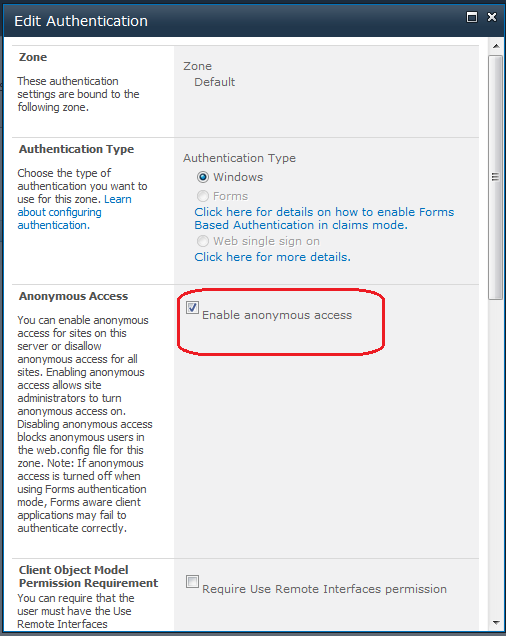
4. Check the "Enable Anonymous Access"


5. Click On Save.
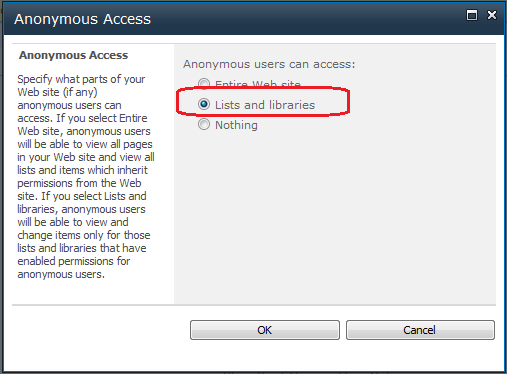
6. Go to your Site --> Site Settings --> Site Permissions. Click on "Anonymous Access" 


7. Select "List and Libraries" 


8.Go to your "List permissions "


9.Click on "Anonymous Access". Select the permissions you want to enable on this list.